Instructions for submitting your Dismissal Readmission Request
Before you start
You will need: Your MYST.CLAIR login information, your student ID number and the semester that you were dismissed from.
Example: You attended Fall 2025 and Winter 2026, and you were notified
of your dismissal after your Winter 2026 exams. This means that you
dismissed from Winter 2026, so your “dismissal term” is Winter 2026.
You will navigate through 7 screens to reach the form. The following instructions will detail each screen and the steps needed to complete them.
Screen 1: Log into your MYST.CLAIR account

Steps:
Click on MYST.CLAIR login point – Screen 1.
The screen will advance to screen 2 for your login information.
Screen 2: Log in
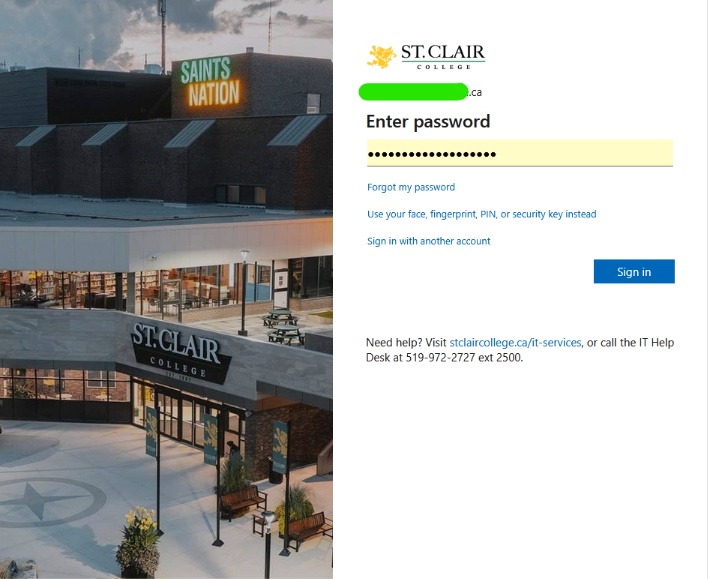
Enter username and password.
Select “Sign in”.
Screen 3: Student Information System (SIS)
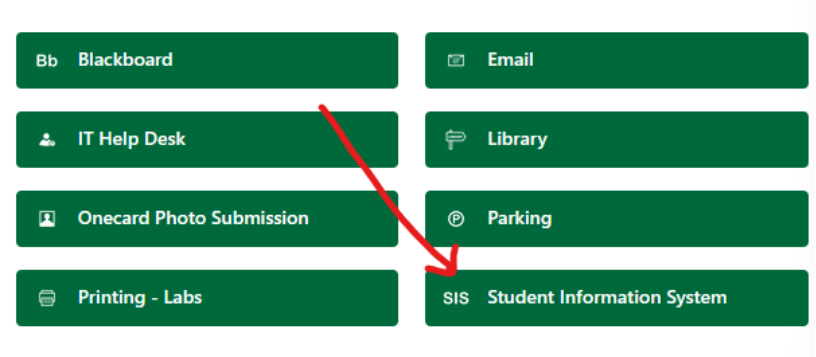
Click the green tile entitled, “SIS Student Information System”.
Screen 4: SIS Homepage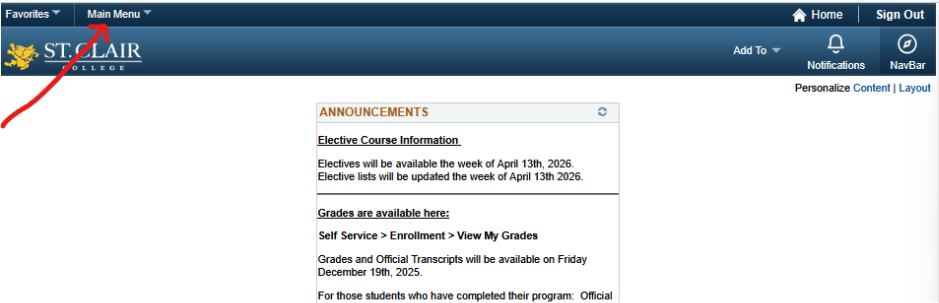
Follow the provided menu path.

Screen 5: Dismissal Readmission Request form
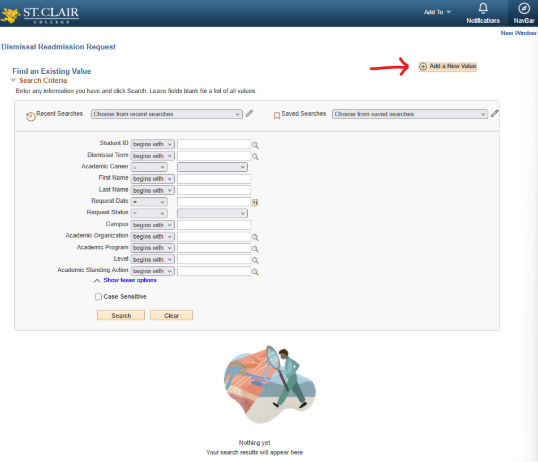
Click the field “Add a New Value” at the top right-hand side of the screen, which is indicated with the red arrow.
Screen 6: Creating your Dismissal Readmission Request
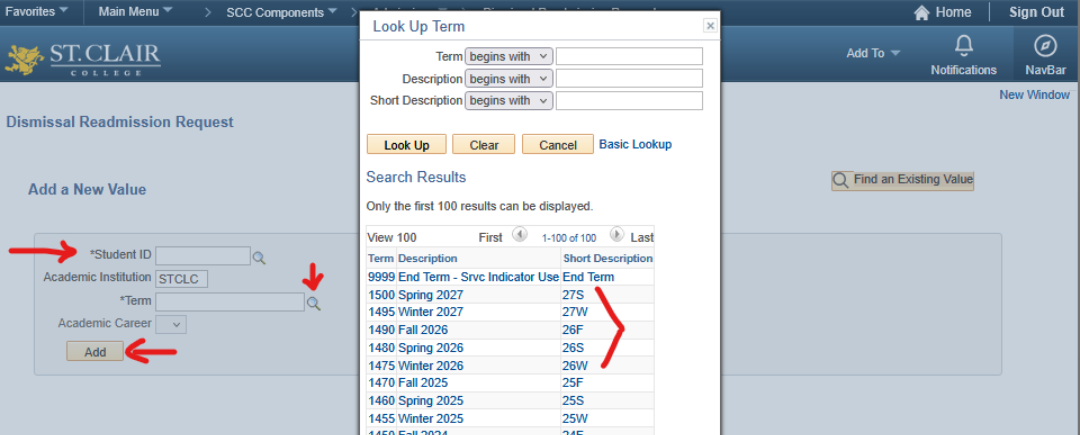
Enter your student ID number.
Click the magnifying glass to select your term of dismissal.
**Troubleshooting Tip**
If you enter the wrong term, it won’t work.
A form can only be created for a term that has a dismissal on file.
Click “Add”.
Screen 7: Complete the form
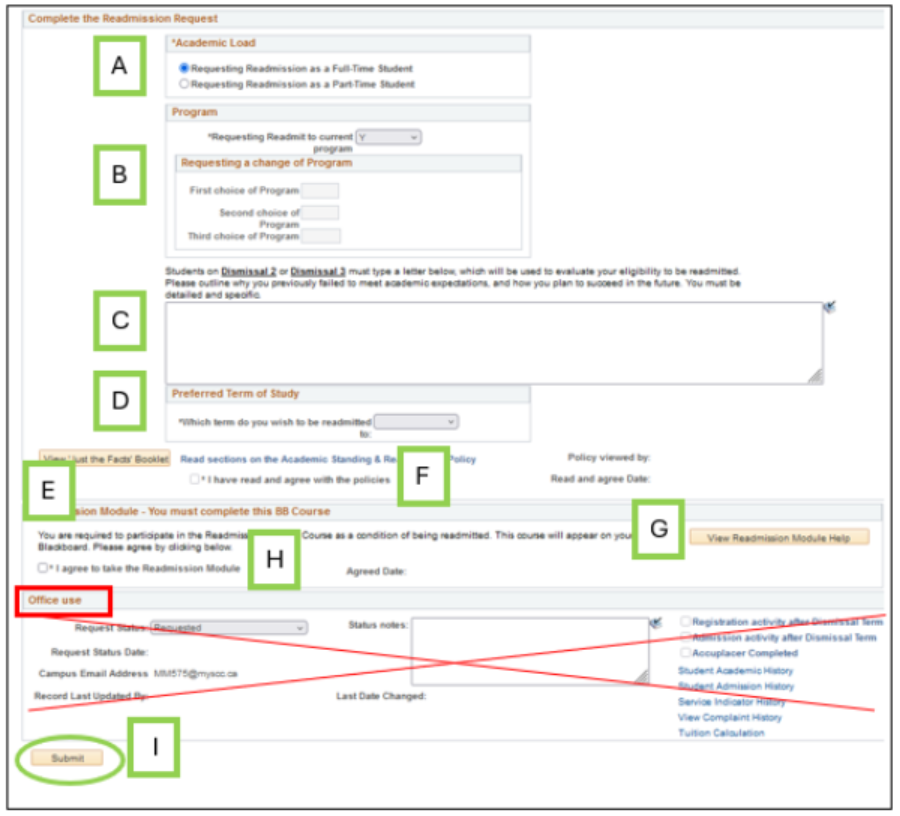
Indicate whether you are requesting to return as a full-time or part-time student.
Indicate whether you are requesting to return to your current program or whether you’d like to request another.
If you’re interested in starting a new program, we recommend listing a few options in order of preference.
If you’re on dismissal 1, this is where you would enter any requests for enrolment. If you’re on dismissal 2 or 3, this is where you will type your letter detailing why you failed to meet academic expectations and how you plan to succeed going forward.
Identify which term you would prefer to return.
TIP: If you were dismissed from Winter 2026 and your program doesn’t resume until Fall 2026, you would enter “Fall” here.
Click on “View ‘Just the Facts’ Booklet” and carefully review the section regarding the Academic Standing and Readmission Policy.
Indicate that you have read, understand, and accept the Academic Standing and Readmission Policy.
Click on “View Readmission Module Help” and carefully review what you need to complete in Blackboard.
Indicate that you agree to take the Readmission Module via Blackboard.
• NOTE – Complete Blackboard right away!
Once you have completed the form, click the “Submit” button at the bottom of the page.
You finished the form! We will review and follow up with you to your St. Clair College email address.
While you wait, please complete your Blackboard Readmission Module course right away. If you don’t see it listed in your Blackboard, please contact readmission@stclaircollege.ca.
Was this article helpful?
That’s Great!
Thank you for your feedback
Sorry! We couldn't be helpful
Thank you for your feedback
Feedback sent
We appreciate your effort and will try to fix the article