Should you need to choose an elective (i.e. ELEC appears on your course list). Please use the elective listing for your campus and register for your elective on your SIS - mySt.Clair portal.
Current students should go to the mySt.Clair site:
Site is http://my.stclaircollege.ca/
You will be required to use your St. Clair ONE username and password to log into mySt.Clair. Your initial password to this account would had been emailed to your personal/home email address. If you do not have your initial password, please see FAQ: How do I reset my password if I forget it?
Once inside the mySt.Clair site, click on the SIS tile.
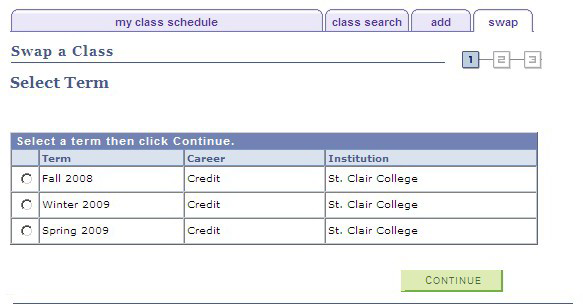
Navigation: Main Menu > Self Service > Enrollment > Enrollment: Swap Classes (screen shots below)
From the drop down menu, please select the ‘ELEC 1030’ course code as shown in the diagram on the following page.
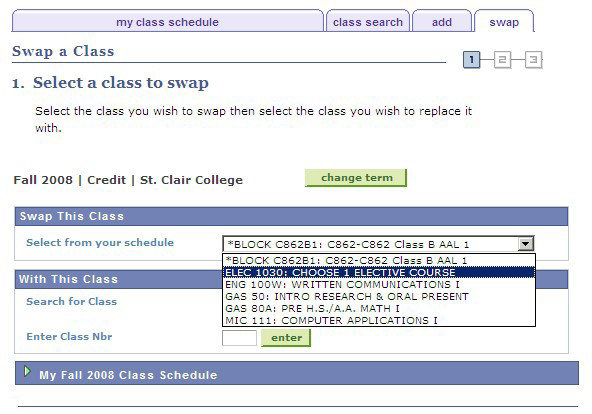
You will then select a course utilizing ‘SEARCH FOR CLASSES’ as indicated below. Click the search button.

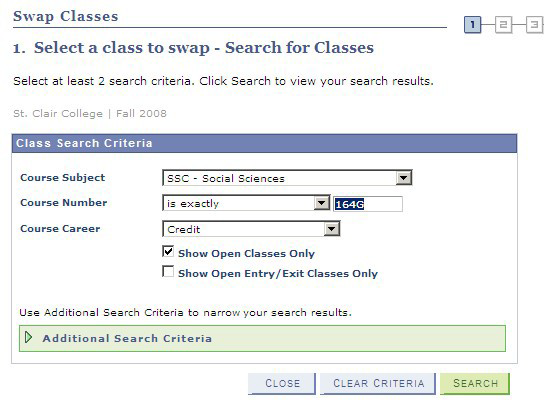
The following screen will appear. From the pull down menu, select the Course Subject and enter the appropriate Course Number. (*For your convenience, a handout outlining Electives available to your program has been provided in your registration package). Press search to continue. A screenshot has been provided on the following page.
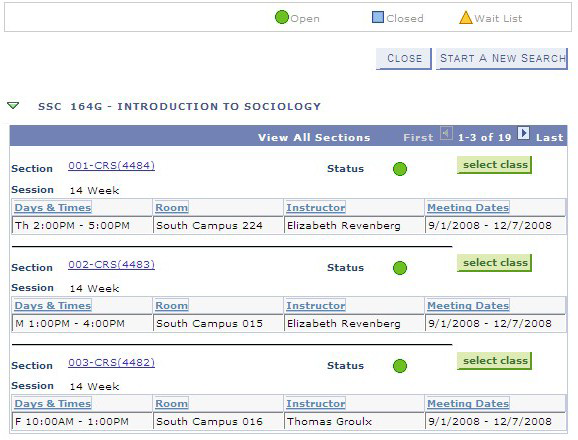
From the criteria provided, a list of available class sections will be provided. The options available will highlight class start and end times, as well as the instructor. To choose the appropriate class, click the ‘SELECT CLASS’ button.
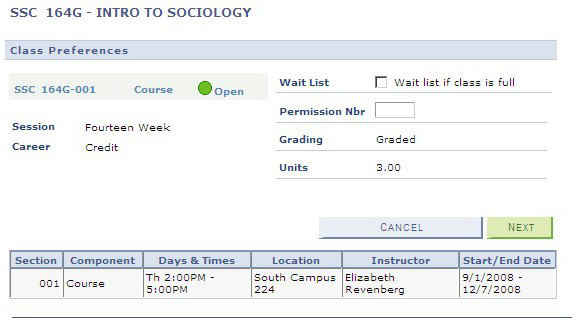
Once a class section is selected, you will be provided with further details relating to the course.
This information is for confirmation purposes only. If you are satisfied with this class, please click the ‘NEXT’ button.
An additional confirmation screen is presented for your approval. Press the ‘FINISH SWAPPING’ button to complete the process.
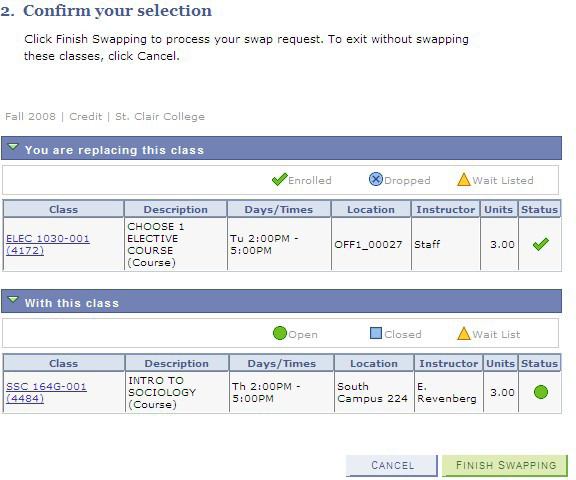
A message will be provided indicating the successful selection of an elective.
Was this article helpful?
That’s Great!
Thank you for your feedback
Sorry! We couldn't be helpful
Thank you for your feedback
Feedback sent
We appreciate your effort and will try to fix the article