Instructions to Submit a Transfer Credit Application through your MySt.Clair:
- Login to the student information system (SIS).
- Access the Transfer Credit Application
Main Menu -> Self Service -> Transfer Credit -> My Application
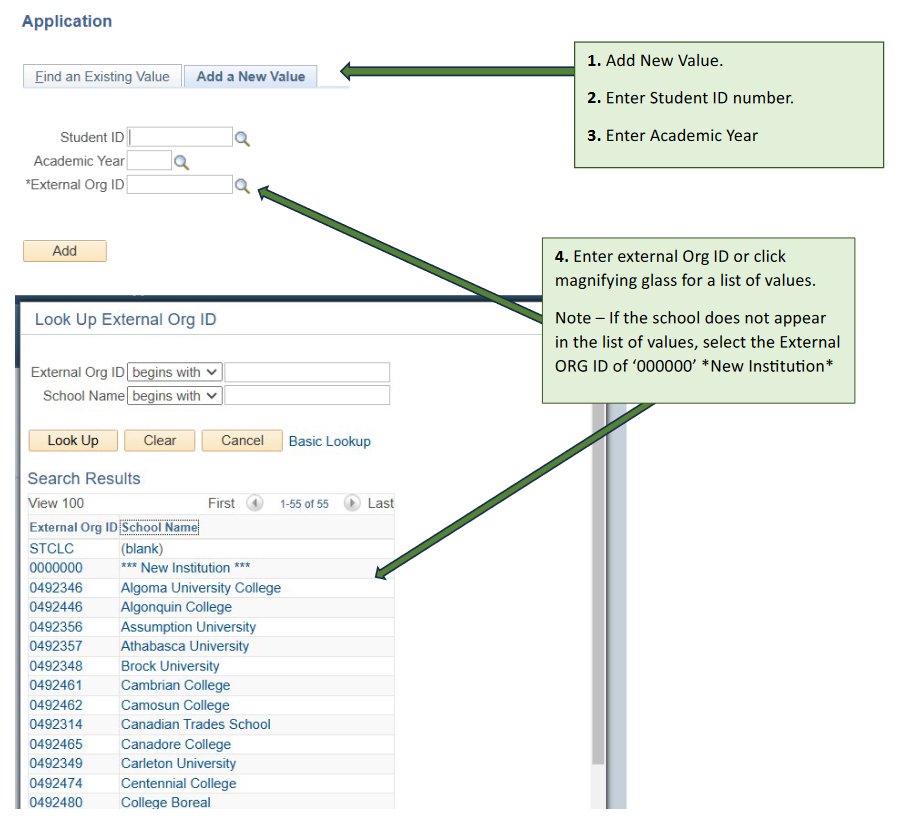
5. Complete the Transfer Credit Request application.
- Upload Official Transcript from your previous college/university. Note: If your previous college/university is St. Clair College you can leave blank.
- Scroll down and find the course you are seeking credit for. Once you have found the course, select one of the following option:
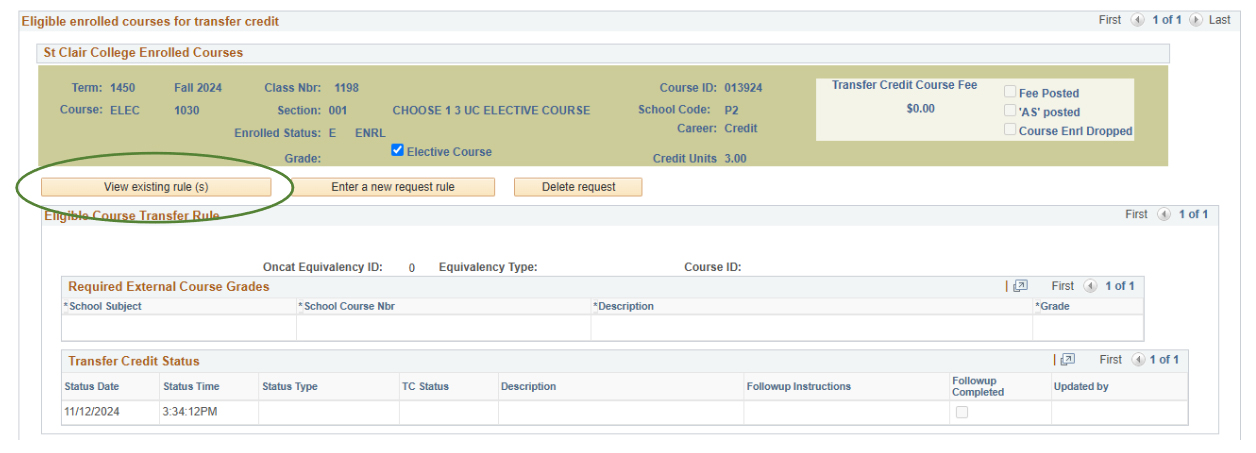
- View existing rule (s)
- Enter a new request rule
- When ready to submit your application request, click on “Submit Application and Charge my account”.
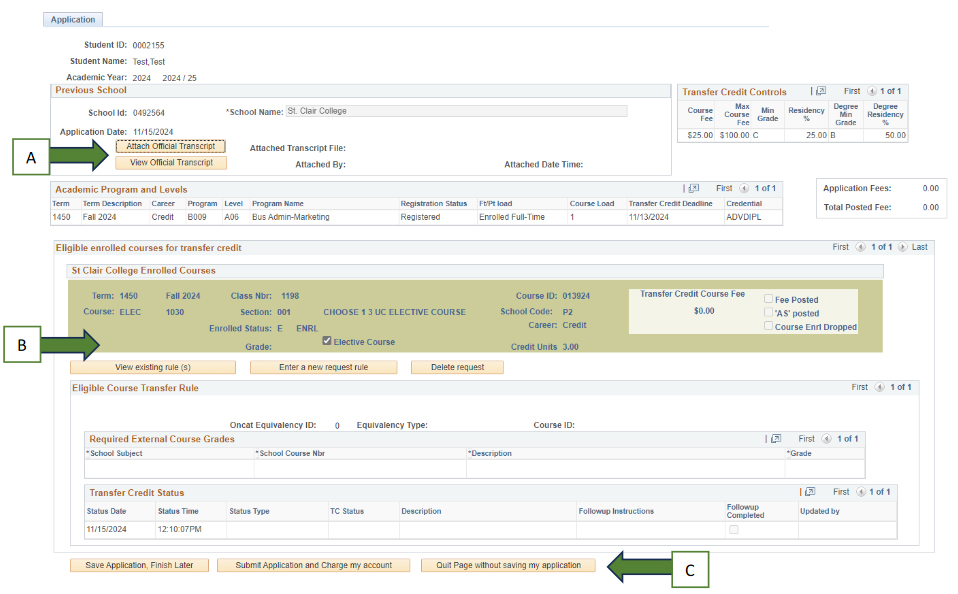
i) Click on “View existing rule (s)”
If your previous course has been pre-approved to transfer, your previous course will be on this list.:
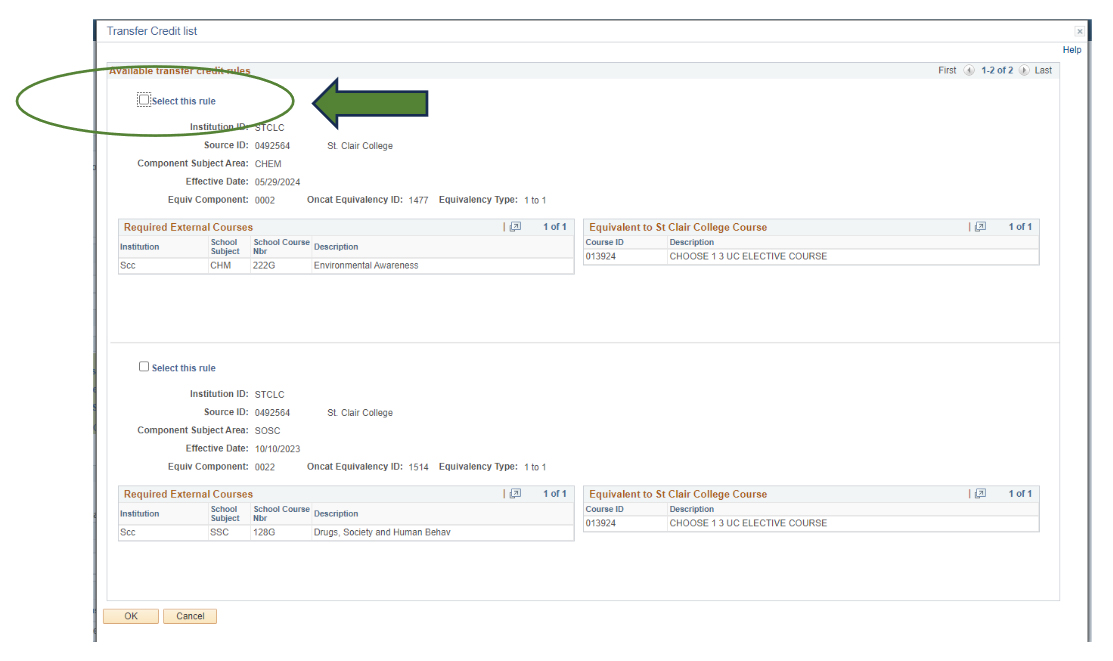
Once you select your course, add the final grade.

ii) Click on “Enter a new request rule”
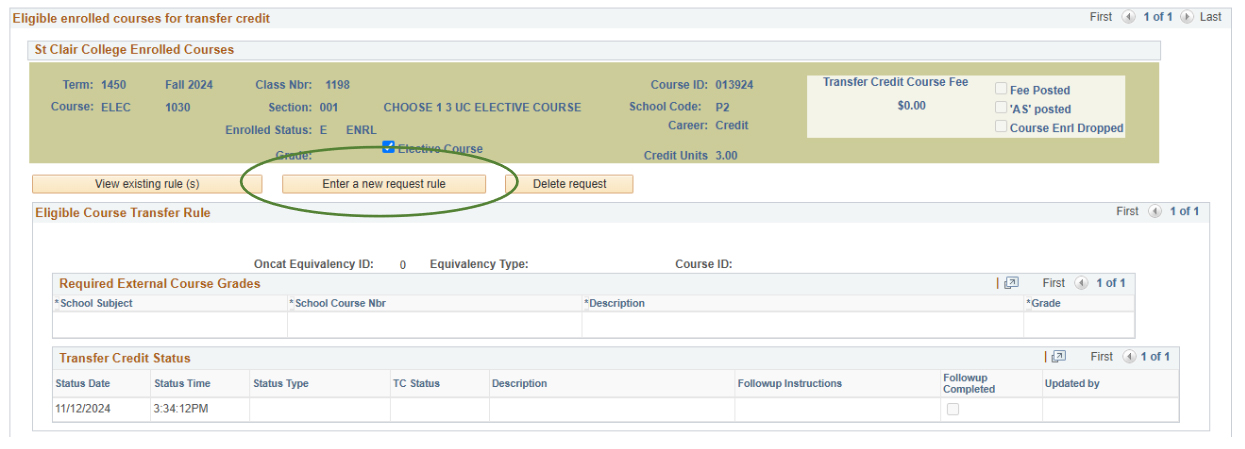
If your previous course has not been pre-approved to transfer, please add your previous course’s
information.

Enter the following information:
- Course Code: School Subject is the course code letters; School Course Nbr is the course code number
- Course Name
- Final grade, and
- Attach the Course Outline
- If you need to submit more than one class, click on “Add Course” and repeat steps 1- 4.
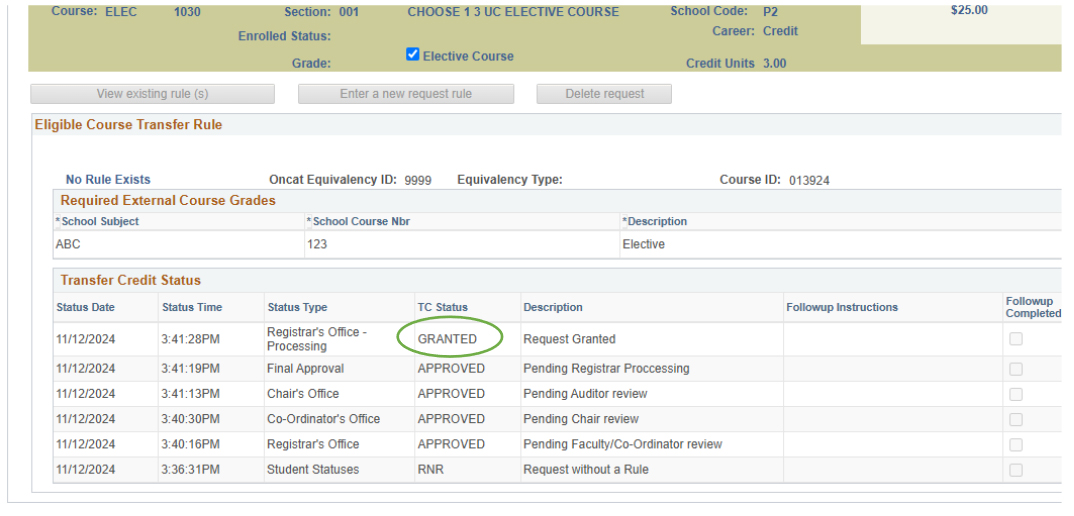
***You can always log in to see updates on your application.
If approved, the TC Status will say “Granted” and you will receive a confirmation email from the
Registrar’s Office.
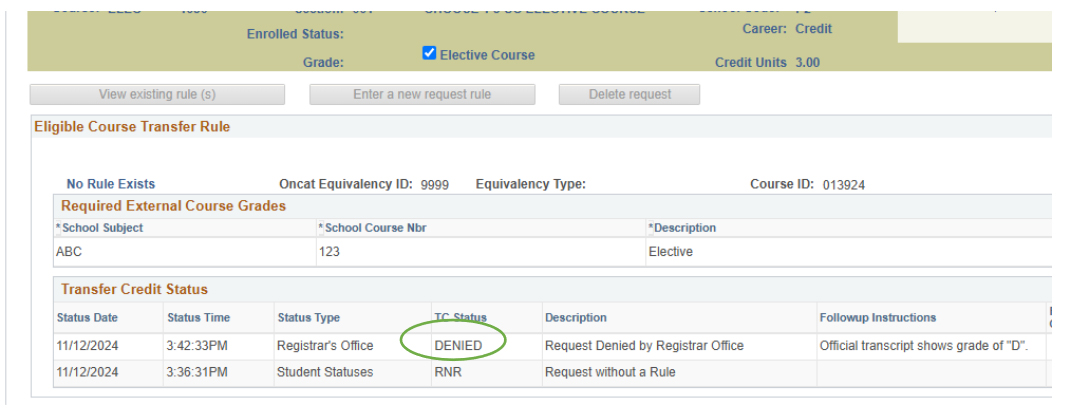
If your request is denied, the TC Status will say “DENIED”; an explanation will be provided in the comment section next to it.
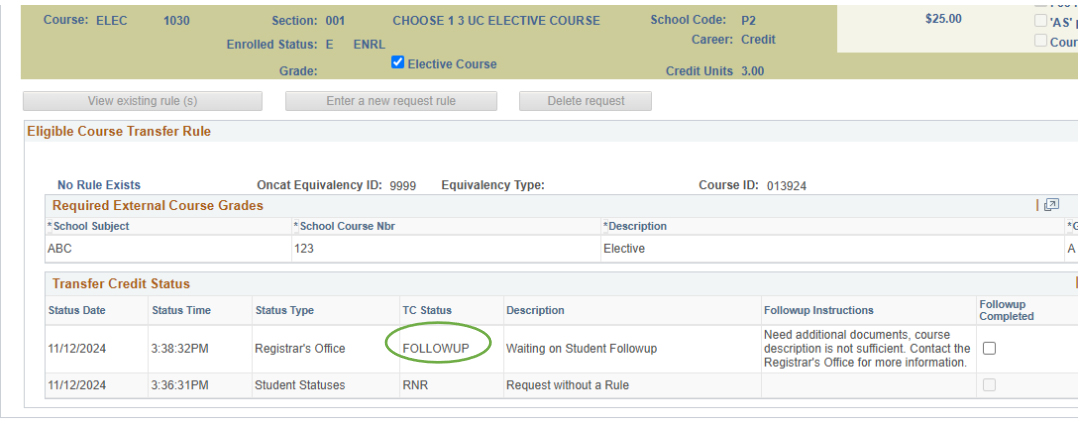
If more information is required, the TC Status will say “FOLLOWUP”; an explanation will be provided in the comment section next to it.
Was this article helpful?
That’s Great!
Thank you for your feedback
Sorry! We couldn't be helpful
Thank you for your feedback
Feedback sent
We appreciate your effort and will try to fix the article